
On this page
Download Data from Sharepoint
Esri UK Content Operations Team will send a delivery email containing the Sharepoint link to download the data from. Follow these steps to download the data
1.Click on the Sharepoint link to access the data folder in an Internet Browser. The data will be delivered in .zip file format as shown in the screenshot below, depending on which datasets have been ordered.
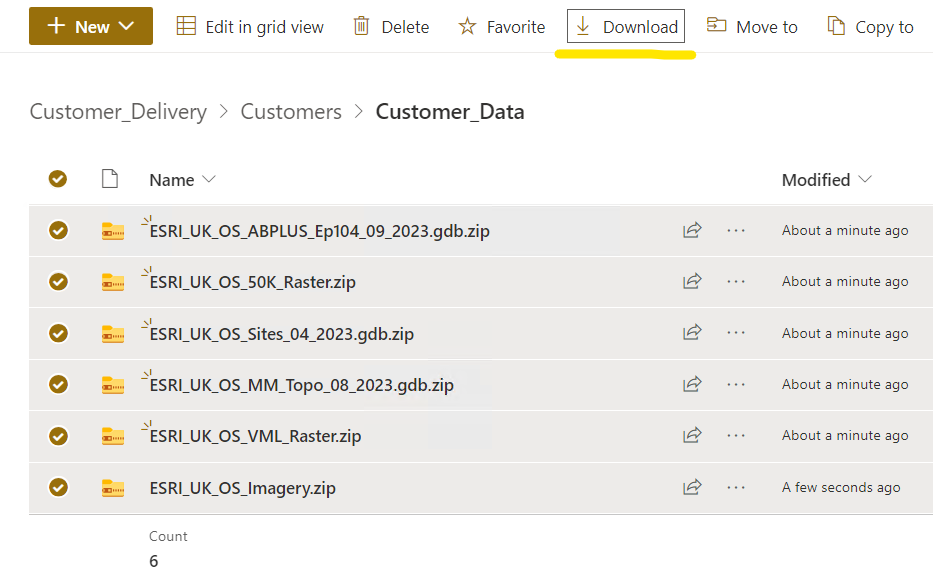
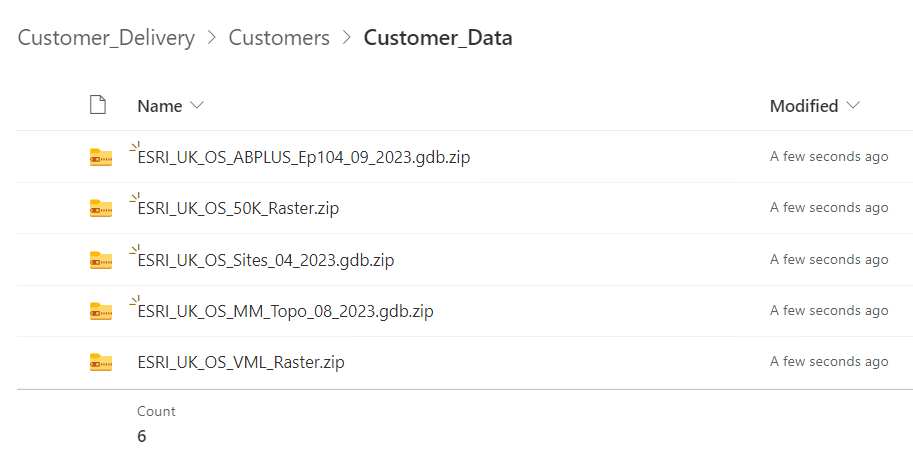 2. Select all the datasets and click the Download button as shown in the screenshot below
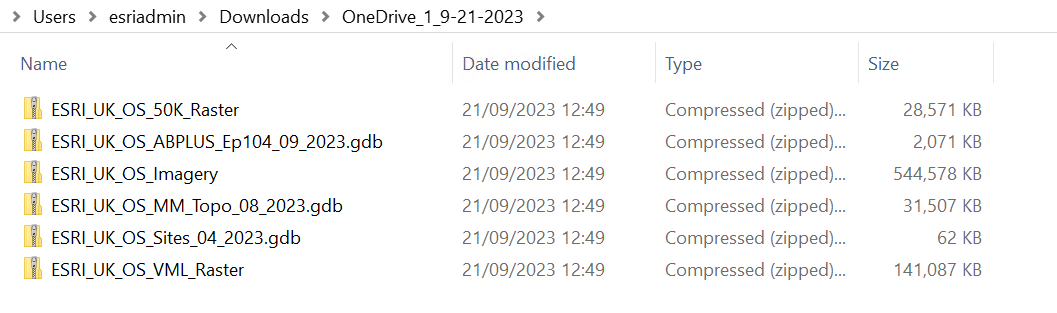
3. Navigate to download folder and Extract the .zip
4. Navigate to an individual .zip and Extract it using 7-Zip as shown in the screenshot below:
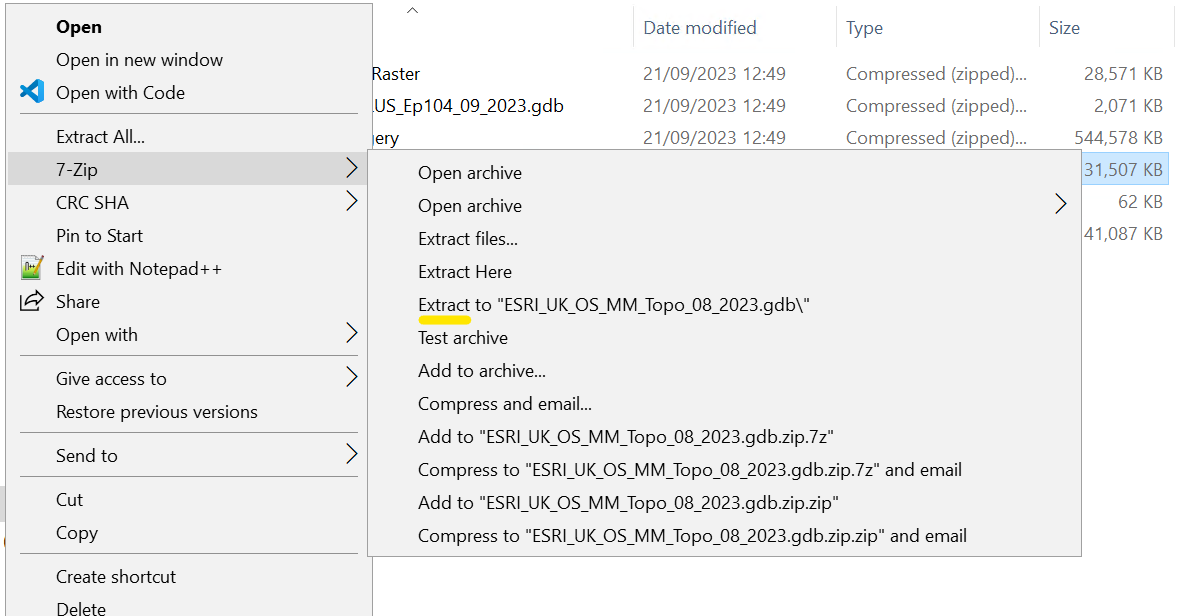
Once Extracted the File Geodatabases will be ready to consume in ArcGIS Pro
Add Data to ArcGIS Pro
The most common way to add data to a map is to use the Add Data button. Follow these steps to add the downloaded data to the map:
1.Open an ArcGIS Pro Project
2. Make sure a map is your active view.
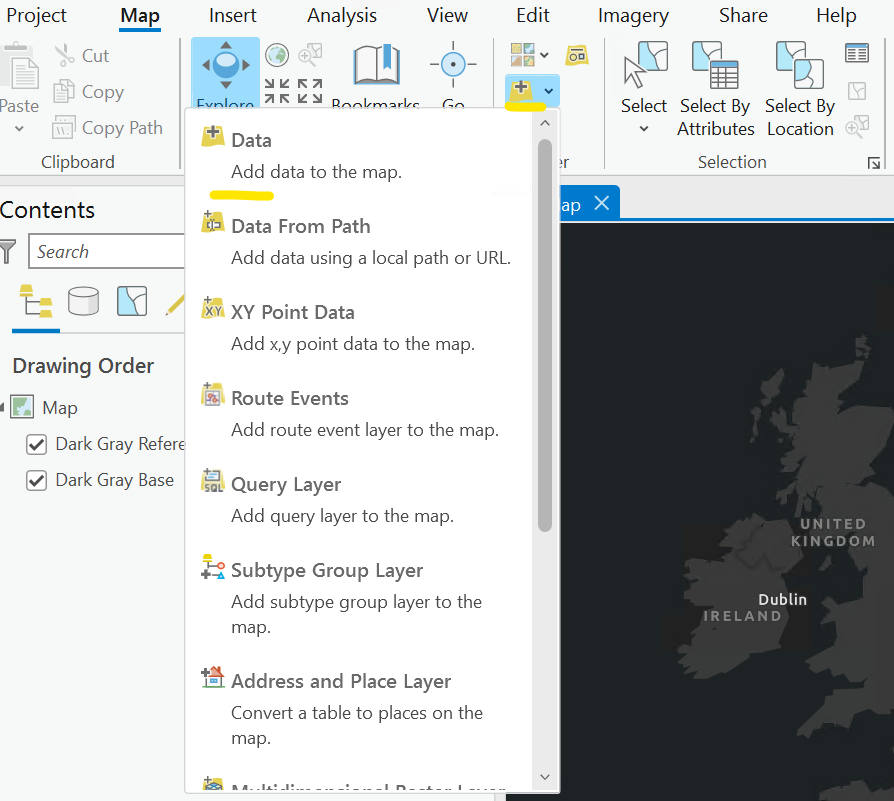
3. On the Map tab, in the Layer group, click Add Data and click Data as shown in the screenshot below
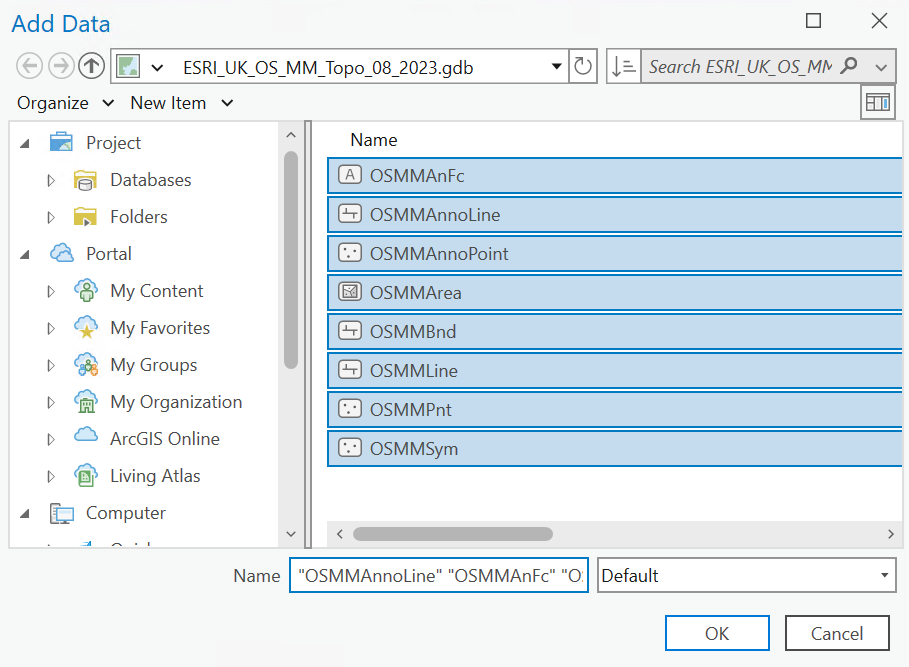
4.On the Add Data dialog box double click on the .gdb and view the data within. Select All the data and Click OK
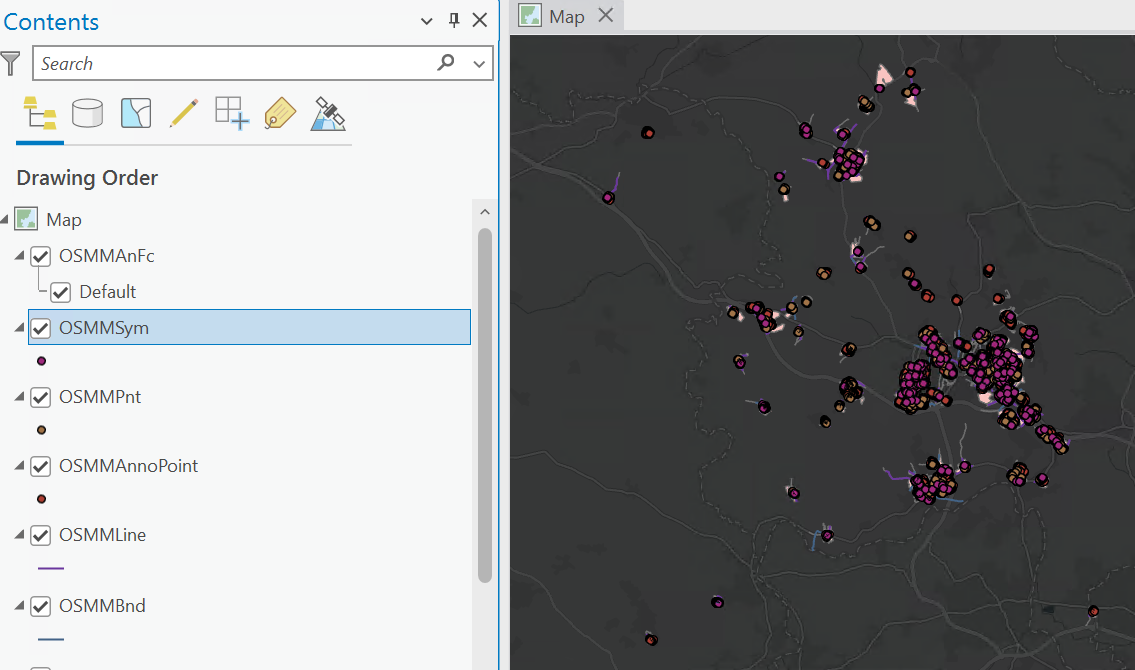
The data will now be added to the Map and appear in the Table Of Contents
For further documentation for working with data in ArcGIS Pro, view the ArcGIS Pro help documentation
ArcGIS Pro help—ArcGIS Pro | Documentation
Repair Mosaic Datasets in ArcGIS Pro
Users will see a chequered board effect if raster tiles are not in the same location as when loaded into the Mosaic Dataset i.e. the path has changed. To view the Mosaic Dataset it will need to be repaired by setting the Mosaic Dataset path to the correct tile location. Follow these steps to repair the Mosaic Dataset.
1.Right click on the Raster Mosaic Dataset in the Catalogue view, navigate to Modify and click Repair Mosaic Datasets Paths in the dropdown

2. The Repair Mosaic Dataset dialog box allows users to browse to the new path to the raw raster tiles such as the ESRI_UK_OS_Raster_Tiles folder
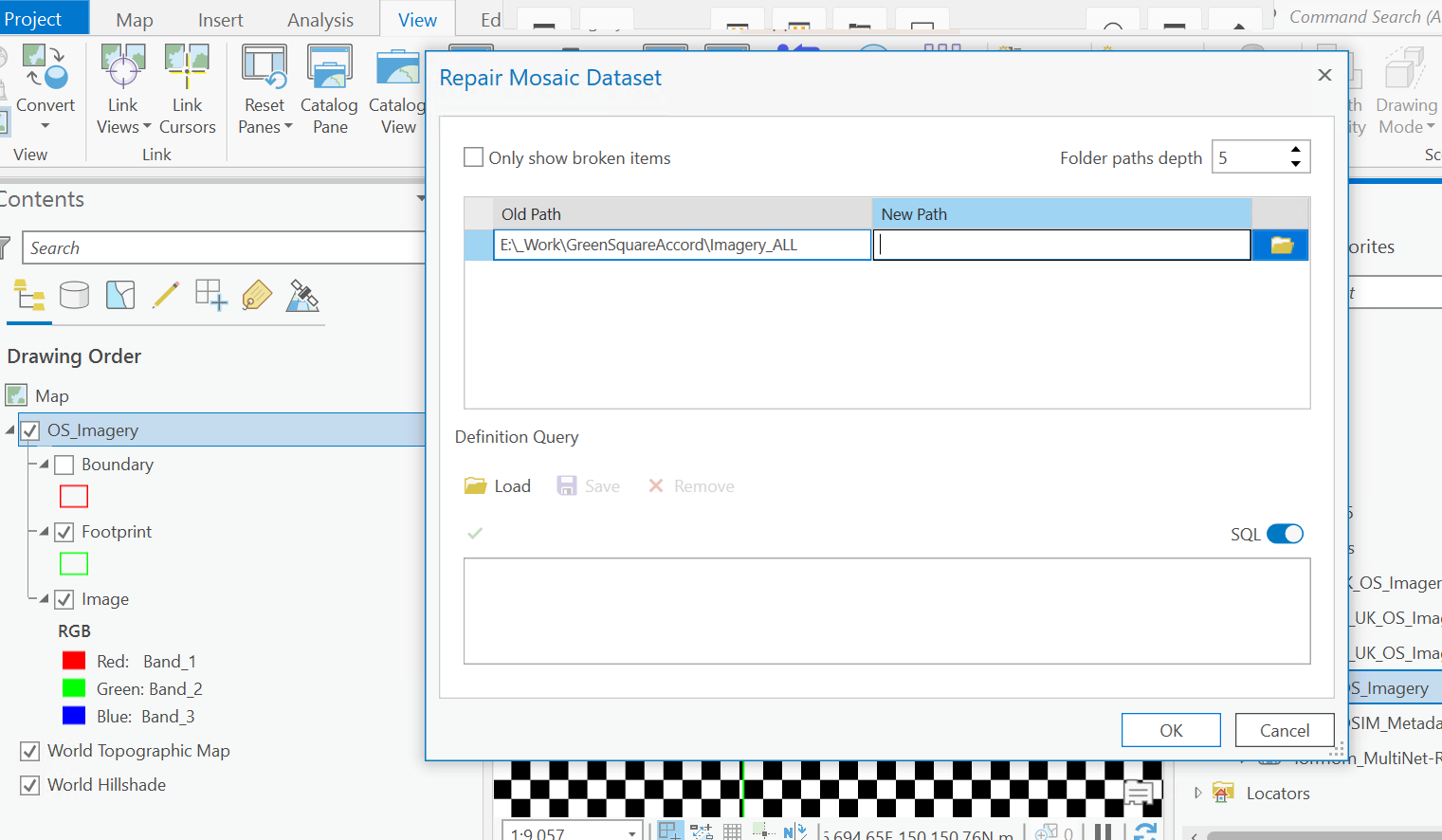
3. Click OK and the Raster Mosaics should now be viewable in ArcGIS Pro.
For further documentation of working with your raster datasets in ArcGIS Pro view the ArcGIS Pro help documentation
ArcGIS Pro help—ArcGIS Pro | Documentation